BOCA FGL Ticket Editor — design BOCA thermal tickets online, get the FGL
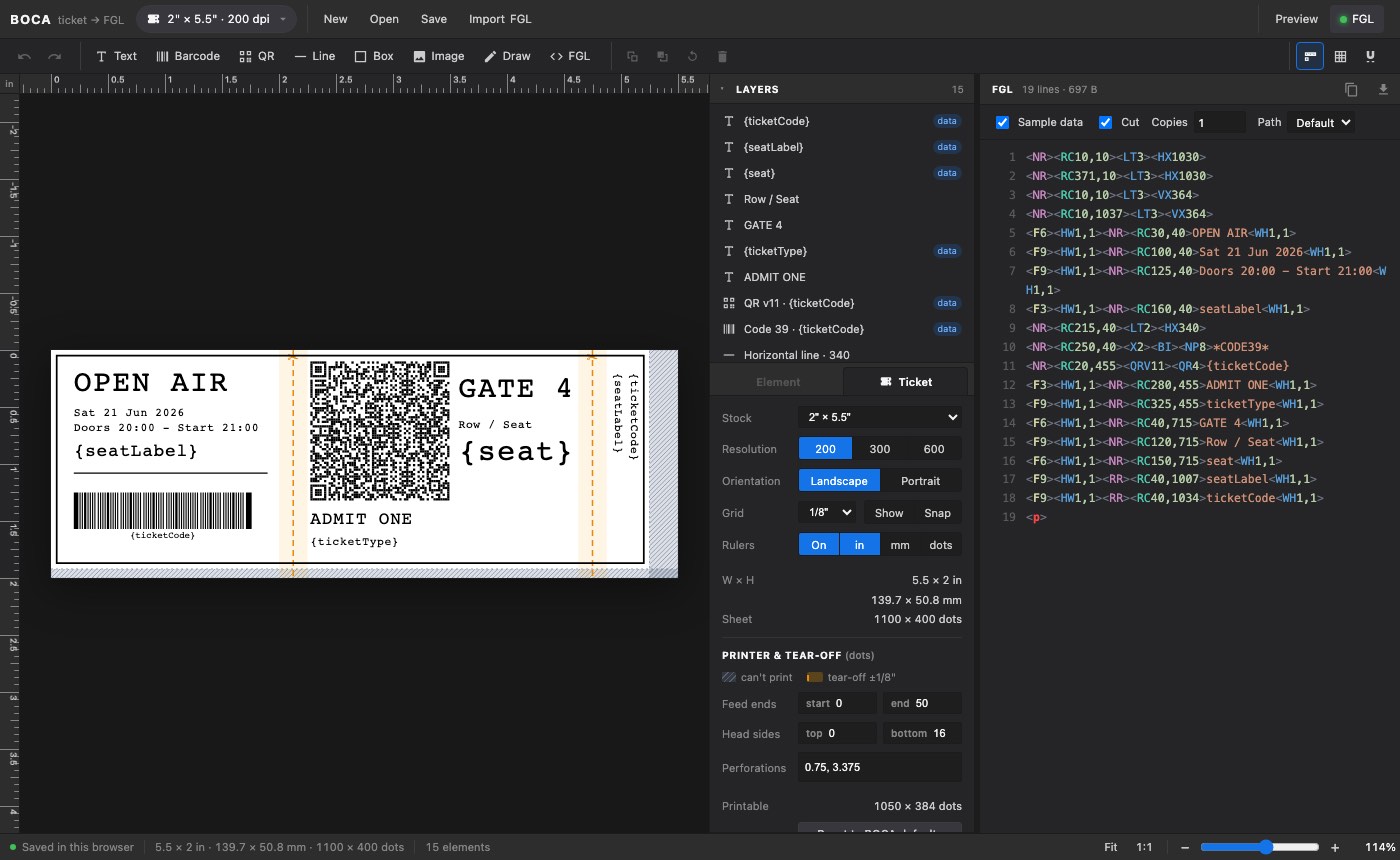
The BOCA FGL Ticket Editor is a free, in-browser ticket designer for BOCA thermal printers. You lay out the ticket visually — text in BOCA fonts, barcodes, QR codes, lines, boxes and images — and the editor writes the matching FGL (Friendly Graphics Language) program beside the canvas as you work. Copy it or download ticket.fgl and send it to the printer. It can also read an existing FGL program and turn it back into an editable layout.
The editor is embedded above. For the most room, open it full screen. Your designs are saved in this browser either way.
The editor needs a wide screen — about 900 px or more. It works best on a laptop or desktop; on a phone or small tablet you can still open it full screen.
Open the editor full screen →What you can do
- See the FGL as you design — the program is generated live next to the canvas, with syntax highlighting. Click a block of FGL to select the element that produced it. Copy the program or download it as
ticket.fgl. - Text in BOCA fonts — the resident bitmap fonts
F1–F13, the resident TrueType fonts RTF1–RTF10 and downloaded TrueType (TTF) fonts with point sizes, plus scale-down<SD#>. - Barcodes — Code 39, Code 128, EAN-13, EAN-8, UPC-A, Codabar and Interleaved 2 of 5.
- QR codes — choose the QR version; the editor checks that your data fits its capacity.
- Images converted to 1-bit — a thermal head prints only black dots, so photos and logos are converted with threshold, Floyd–Steinberg, Atkinson or ordered (Bayer) dithering, with brightness and contrast controls. What you see is what the head can print.
- Lines, boxes and freehand drawing for frames, separators and stub layouts.
- Rotation in 90° steps (
<NR>,<RR>,<RU>,<RL>), with every element placed by<RC>row/column. - Precise layout — rulers in inches, millimetres or dots, a grid, snapping, and undo/redo.
- Print checks — warnings for content too close to a perforation, barcode bars that may be too thin to scan, non-ASCII text, and colours or fills a thermal printer cannot reproduce.
- Private by design — no sign-up and no upload. Designs autosave in your browser (IndexedDB), and you can save and open them as JSON files. Once loaded, it works offline.
How it works
- Choose the stock and resolution. Pick the ticket size, 200, 300 or 600 dpi, and portrait or landscape. The printer's dead zones and the tear-off (perforation) zones are drawn on the canvas, so you know where not to put content.
- Lay out the ticket. Add text, barcodes, QR codes, lines, boxes and images; drag, rotate and snap them into place. Turn on sample data to preview the ticket with realistic values, or keep
{{field}}tokens for your server to fill in. - Take the FGL. Copy the generated program or download
ticket.fgl, then send it to the printer as raw data from your own software. Pick cut or no-cut, the number of copies and, on dual-path printers, the print path before you export.
Supported FGL commands
The generated syntax follows the BOCA FGL46 Programming Guide (rev. 16.7). These are the commands and features the editor writes and reads:
| FGL | What the editor uses it for |
|---|---|
<RCrow,col> | Position of every element, in dots |
<NR> <RR> <RU> <RL> | Rotation: 0°, 90°, 180°, 270° |
<F1>–<F13> | Resident bitmap fonts |
| RTF1–RTF10, TTF | Resident and downloaded TrueType fonts, with point sizes |
<SD#> | Scale a font down |
| 1D barcodes | Code 39, Code 128, EAN-13, EAN-8, UPC-A, Codabar, Interleaved 2 of 5 |
| QR codes | QR version selection with a data-capacity check |
| Lines, boxes, graphics | Rules, boxes, 1-bit images and freehand drawing |
<p> / <q> | End the ticket and cut / end it without a cut |
<RE#> | Number of copies |
<P1> / <P2> | Print path on dual-path printers |
Not emitted on purpose: darkness, print speed and ticket length. On BOCA printers these commands write to the printer's flash memory, so they belong in the printer's configuration, set once — not in every ticket.
New to the language? The FGL programming guide for thermal printers on this site explains the command structure, the dot coordinate system, fonts, barcodes and graphics in detail.
Ticket stocks and printers
Choose one of the common BOCA ticket stocks, at 200, 300 or 600 dpi, in portrait or landscape:
| Stock (inches) | Typical use |
|---|---|
| 2 × 5.5, 2.125 × 5.5, 2.5 × 5.5, 2.7 × 5.5 | The 2″ × 5.5″ ticket family |
| 3.25 × 8 | Large ticket or receipt |
| 3.25 × 6.5 | Large ticket |
| 3.25 × 6 | Ski ticket |
| 3.25 × 2 | Cinema ticket |
| 2.125 × 3.375 | Card |
| 4 × 6 | 4″ print head |
| 1 × 11 | Wristband |
Dead zones, perforations and print checks
A thermal printer cannot print right up to every edge, and a ticket with a tear-off stub has a perforation line that will cut through anything placed on it. The editor draws the printer's dead zones and the tear-off zones on the canvas and checks the layout against them. Before you export, the print checks also flag barcode bars that may be too thin to scan reliably, text with non-ASCII characters, and colours or fills that a one-colour thermal printer cannot reproduce.
Print settings
- Cut or no cut — end the ticket with
<p>(print and cut) or<q>(print without cutting). - Copies —
<RE#>repeats the ticket. - Dual path —
<P1>/<P2>select the paper path on dual-path printers.
Import existing FGL
Already have tickets in production? Paste an FGL program into the import dialog, or drop a .fgl, .txt or .prn file onto the editor. It rebuilds the elements on the canvas so you can move, restyle and re-export them, and it lists anything it does not support instead of silently dropping it. FGL exported by the editor imports back exactly, so you can keep the .fgl file as the source of truth.
Insert FGL does the same for a fragment — a barcode block or a header from another ticket — and places it on a free spot of the current design.
Variable data: {{fields}}
Real tickets are printed with variable data: the attendee's name, the seat, the order number, a barcode or QR code that is unique per ticket. In the editor, bind a text element, barcode or QR code to a data field: ticketCode, eventName, eventDate, eventTime, venueName, section, row, seat, seatLabel, gate, price, ticketType, holderName or orderId. With sample data turned off, the exported FGL carries tokens such as {{seat}} or {{ticketCode}} in their place, so it works as a template: your server replaces each {{field}} with the real value for every ticket and sends the result to the printer.
With sample data on, the canvas and the FGL show realistic example values instead, so you can check that a long name or a full seat label still fits before the first real ticket is printed.
FAQ
Is the BOCA FGL editor free?
Yes. It is free to use, with no account and no sign-up. Open the page and start designing.
Is my ticket design uploaded anywhere?
No. The editor runs entirely in your browser and makes no network requests. Designs autosave to your browser's storage (IndexedDB) on this device. To back a design up or move it to another computer, save it as a JSON file and open it there.
Which printers does it work with?
BOCA printers that use FGL, for example the Lemur and Ghostwriter families. The generated syntax follows the BOCA FGL46 Programming Guide (rev. 16.7); check your printer's manual for the FGL level and features it supports.
200, 300 or 600 dpi: which should I choose?
The resolution of your printer's print head. FGL positions and sizes are measured in dots, so a ticket laid out for 200 dpi comes out at about two-thirds of the size on a 300 dpi printer. Choose the dpi before you design; the rulers can show inches, millimetres or dots.
How do I send the FGL to the printer?
The editor does not print by itself; it gives you the FGL text. Send that text to the printer unchanged, as raw data: through the printer's raw port (USB, serial, parallel or network) or a print queue set up for raw or pass-through printing. In production this is usually done by your ticketing software or server, which also fills in the {{field}} values.
Can I import an FGL program I already have?
Yes. Paste the program or drop a .fgl, .txt or .prn file on the editor. It rebuilds the elements on the canvas and warns about any commands it does not support. FGL exported by the editor imports back exactly.
Does it work offline?
Yes. Once the page has loaded it needs no connection: the whole editor is a single file, and your designs are stored locally in the browser.
Why doesn't the FGL set darkness, speed or ticket length?
On BOCA printers those commands write to the printer's flash memory. Sending them with every ticket would rewrite those stored settings each time, so the editor deliberately leaves them out. Set them once in the printer's configuration.
Further Reading
- FGL Programming Guide for Thermal Printers — commands, fonts, barcodes, QR codes, graphics and practical tips
- BOCA Systems FGL46 Programming Guide (PDF) — the official command reference the editor follows
- BOCA Systems, Inc. — manufacturer of FGL thermal ticket printers
Built by Taras Trishchuk. An independent tool, not affiliated with or endorsed by BOCA Systems; BOCA, Lemur and Ghostwriter are names of their respective owners.